The builder
Results and history
Where a run's data goes, how to read it while it happens, and how to find it again three weeks later.
What a run produces
| Output | Where it lands | Contents |
|---|---|---|
| Results file | Output/ in the package | One row per recorded point: loop variables, operator inputs from a pause, every measured column, and each column’s verdict. |
| Log | Output/ | The complete run output, including everything the view truncated. |
| Outcome | Read by the product | Status, rows written, columns, failed limits, failed instruments, duration. |
| Report | the Report pane | The document form of the above. |
| PDF report | Output/, when the package was built with reporting on | Generated next to the results file at the end of the run. |
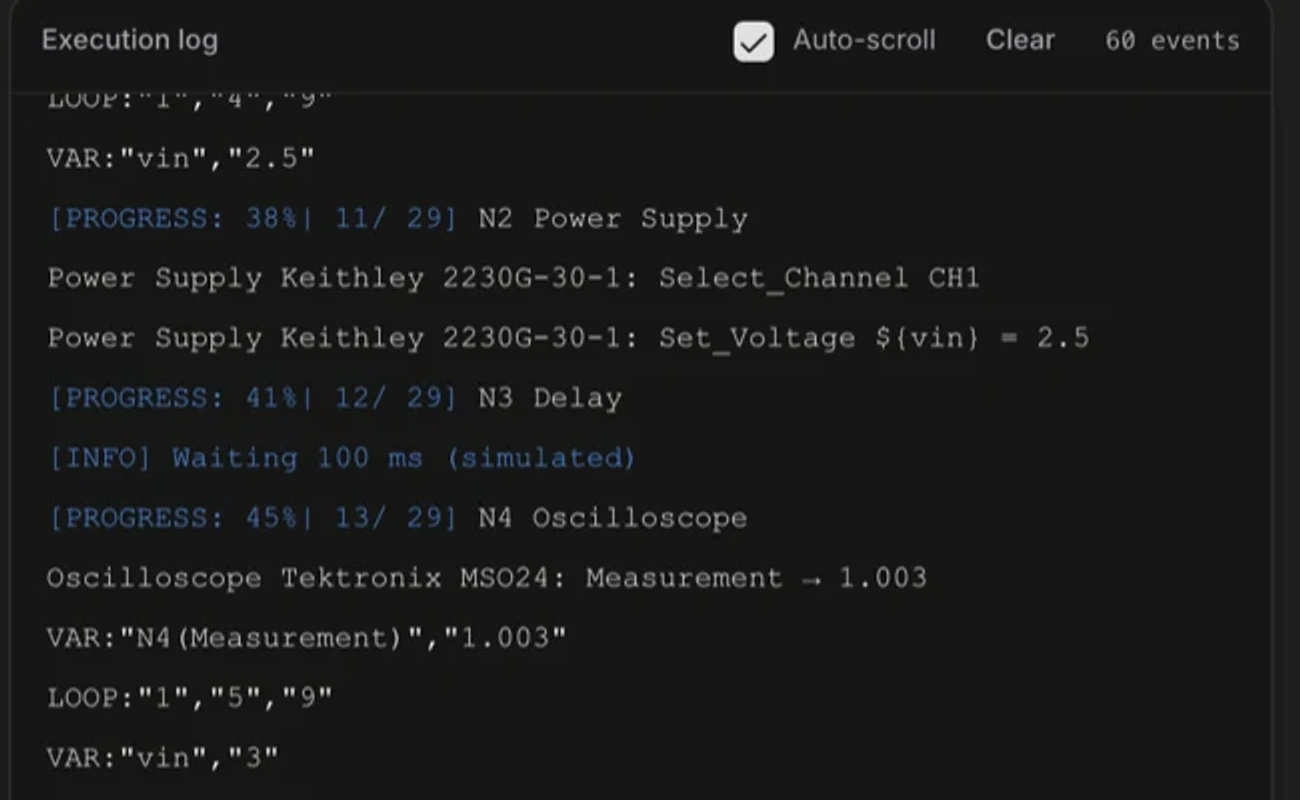
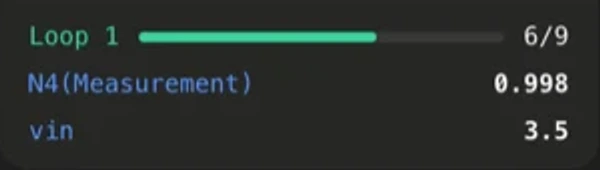
The measurement dashboard
While a bench run is in flight, the dashboard shows each measured column as a card, updating as the results file grows. It is the fastest way to notice that a rail is 200 mV low without waiting for the run to end.
Run history
The History tab in Executor lists your past runs. Each entry carries the workflow, the timestamp, the outcome, and an export. Use it to compare a run before and after a board change, or to retrieve results from a session you have closed.
Statuses, and what each one means
| Status | Meaning | Is it a pass? |
|---|---|---|
| passed | The run completed, rows were written, and every evaluated limit was met. | Yes |
| failed | The run completed and at least one limit was not met. | No. A result, not a fault. |
| error | The run did not complete. An instrument, the connection, or the code failed. | No |
| stopped | You stopped it. | No |
| unknown | The run ended without reporting an outcome. | No. Unknown is never a pass. |
See also