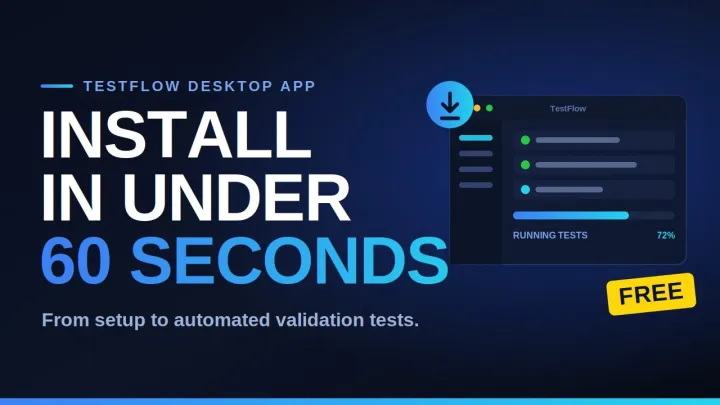
 Watch insteadFree automation desktop App_installer for hardware testing1:20
Running tests
The desktop app
Real instrument control needs a process on your machine. That process is the TestFlow desktop app, and it is the only thing standing between the workflow and your hardware.
Why it exists
A browser cannot open a USB test-and-measurement device, cannot talk to a GPIB controller card, and cannot claim a serial port. VISA is a native library. So the parts of TestFlow that touch hardware live in a native app, and the parts that do not live on the web.
Instrument traffic never leaves your machine. TestFlow does not proxy SCPI through a server.
What needs it
| Feature | Browser | Desktop |
|---|---|---|
| Build workflows with the agent | Yes | Yes |
| Plans, Report structure, Schematic, Code | Yes | Yes |
| Simulate a run | Yes | Yes |
| Scan the bus / auto-detect | No | Yes |
| Test an instrument connection | No | Yes |
| Run on real instruments | No | Yes |
Getting it

- 1
Ask for a bench run
The first time you choose “Run on my bench”, TestFlow offers the download. There is also a permanent link on the site. - 2
Install and sign in
Same account as the web app. Your projects, bench configurations, and history are the same. - 3
Install your vendor VISA runtime
Keysight IO Libraries Suite or NI-VISA, whichever you already use. This is the layer that actually enumerates your instruments, and it is a vendor component rather than something TestFlow can ship. - 4
Open the project and run
The workflow is identical. Only the execution path changes.
Where your data goes
Runs write into the package's Output/ folder on your machine: the results file, the full log, and the PDF report if you have that enabled. The run's outcome and the report structure sync back to your workspace so the Report pane and run history can show them.