LabVIEW Runtime Engine in 2026 (Version Rules, Royalty-Free Deploy)
What the LabVIEW Runtime is, the exact version and bitness rules from NI's documentation, a symptom-by-symptom fix list for built applications that will not start, and what you need to deploy LabVIEW code to a station with no development license.
The LabVIEW Runtime (long called the LabVIEW Run-Time Engine) is the set of libraries a computer needs to run a built LabVIEW application, shared library, or other build output without LabVIEW installed. NI's documentation says it must be on every computer that runs any LabVIEW build output, and an installer built with Application Builder includes it by default. For apps built in LabVIEW 2017 or later with the "Allow future versions" option checked, any runtime of the same or a newer version works. Otherwise the runtime version must match the LabVIEW version that built the app, and the bitness must always match.
This guide is for test engineers and test leads deploying LabVIEW code to stations, and for anyone staring at a built executable that will not start on a fresh PC. It covers the version and bitness rules, a symptom-by-symptom fix list, and what deploying without a development license actually requires. Every rule is quoted from NI's own documentation as of November 2026. For the wider LabVIEW picture, start at the LabVIEW hub.
What the LabVIEW Runtime is, and what it does not include
NI's page Using the LabVIEW Runtime when Distributing Build Outputs is the reference. Its key statements:
- •"You must install the LabVIEW Runtime on any computer on which you want to run any type of LabVIEW build output."
- •The runtime includes the libraries and other files needed to run basic application types built in LabVIEW, and it is multilingual.
- •When you create an installer build specification, LabVIEW includes the runtime by default.
- •All applications built with one LabVIEW version can share one installed runtime of that version.
The LabVIEW Runtime download page lists 2026 Q3 as the newest version in November 2026, for Windows, macOS, and Linux, with 32-bit and 64-bit options. The same page notes that driver software is not included. That one line explains a large share of failed deployments: the runtime runs your VIs, but NI-VISA, NI-DAQmx, or NI-488.2 still has to be installed separately on the station.
LabVIEW Runtime version rules
NI's compatibility table splits on the LabVIEW version that built the application and one build option on the Advanced page of the build specification.
| Built with | Option that begins "Allow future versions" | Runtime the station needs |
|---|---|---|
| LabVIEW 2017 or later | Checked | The same version or any newer runtime |
| LabVIEW 2017 or later | Unchecked | The runtime matching the build version |
| LabVIEW 2016 or earlier | Not available | The runtime matching the build version |
NI's LabVIEW and Run-Time Engine compatibility page adds a warning about the checked option: later runtimes keep the same interfaces but "do not maintain the same behaviors as earlier compatible versions." NI's documentation frames the trade-off directly. Leave the option checked to prioritize forward compatibility. Uncheck it to prevent performance profile changes after software updates and to avoid problems from compiler upgrades.
For a validated production station, unchecked is usually the right call: the station runs the exact runtime the app was qualified on, and a newer runtime installed by another product cannot change its behavior. For an internal tool that many PCs run, checked saves you from installing a runtime per LabVIEW version.
Plan the runtime version against NI's support window too. NI's software lifecycle page lists LabVIEW 2023 and later in mainstream support as of 2026, and a new policy with Active, Limited Support, and End of Life phases takes effect on January 15, 2027. A station pinned to an old runtime keeps working, but security fixes and OS updates follow the support phase, not the station.
One older example from NI's page shows why the rule matters: an app built in LabVIEW 7.0 and an app built in 8.0 on the same PC need runtime 7.0 and runtime 8.0 both installed, because each runtime supports only its own version's apps.
LabVIEW Runtime bitness rules
Bitness is stricter than version. NI's compatibility page states that a LabVIEW application must run on a runtime of the same bitness it was developed with.
| Situation | Works? | Source |
|---|---|---|
| 32-bit app on a 32-bit runtime, 64-bit Windows | Yes | NI 32-bit vs 64-bit FAQ |
| 64-bit app on a 32-bit computer | No | NI 32-bit vs 64-bit FAQ |
| 32-bit app on a 64-bit runtime | No | NI compatibility page |
| 32-bit and 64-bit runtimes of one version, side by side | Yes, on 64-bit Windows | NI compatibility page |
| Two runtimes with different major versions | Yes | NI compatibility page |
| SP1 runtime over the same non-SP1 version | Replaces it | NI compatibility page |
NI's 32-bit vs 64-bit FAQ also notes that the 64-bit Application Builder cannot produce a 32-bit application. If stations must run 32-bit, build on 32-bit LabVIEW. The LabVIEW version compatibility guide covers the development side of the same question.
Why a built LabVIEW application will not run
Work down this table on the failing station. Each row comes from NI's documentation, not from guesswork.
| Symptom | Likely cause | Fix |
|---|---|---|
| App will not launch on a fresh PC | No LabVIEW Runtime installed | Ship an installer build, which includes the runtime by default |
| Launches on one PC, not another | Option unchecked, or built in 2016 or earlier, and the matching runtime is missing | Install the runtime that matches the build version |
| Runtime installed, app still refuses | Bitness mismatch | Install the runtime of the app's bitness |
| UI loads, instrument or DAQ calls fail | Driver software missing, since the runtime does not include it | Install NI-VISA, NI-DAQmx, or the vendor driver on the station |
| Vision, OPC UA, or sound and vibration code fails | Toolkit needs its own runtime license per station | Buy the deployment license NI lists for that toolkit |
| An error dialog you saw in development never appears | LabVIEW does not show automatic error handling dialogs in the runtime | Add explicit error handling to the VIs |
| Some code never executes | Code that runs after the last front panel closes does not execute in a built app | Restructure so the app stops cleanly before panels close |
| Property or method works in the editor only | Some VI Server properties and methods are not supported in the runtime | Replace them in VIs that go into the build |
| Installer fails on Windows | Installers that include the runtime need administrator privileges | Run the installer as an administrator |
| Math or signal processing VIs fail on Linux | Advanced Analysis support package skipped | Answer yes to the LabVIEW Runtime Advanced Analysis Support package |
Keep a record of the runtime version, bitness, and driver versions each station was qualified with, so a rebuild or a replacement PC can be set up to match. The middle rows are the ones teams miss. An application that ran perfectly on the build PC, which has every driver and toolkit license, will often fail only on the station, and the runtime itself is rarely the problem. The LabVIEW system requirements page covers the operating system side.
Deploying LabVIEW without a development license
You need a development license on the build machine, not on the stations. NI's licensing statements make the station side simple:
- •The runtime license is included. NI's subscription and deployment guide says the runtime engine license is included in the cost of your LabVIEW development license, even on subscription.
- •Lapsed subscriptions do not break stations. The same guide says a deployed application that uses only the runtime is not affected and continues to work if you do not renew.
- •Stand-alone apps are royalty-free. NI's LabVIEW edition page describes Professional's Application Builder as creating "(royalty-free) stand-alone applications for deployment."
Which edition can build what
NI's Application Builder edition requirements say Application Builder is included with LabVIEW Professional and sold as a separate module for Base and Full.
| Build output | Minimum requirement |
|---|---|
| Stand-alone application | Application Builder or Professional |
| Installer | Application Builder or Professional |
| Shared library, .NET assembly | Application Builder or Professional |
| Packed project library, package, zip file | Application Builder or Professional |
| Source distribution | Base edition |
On cost, as of November 2026 ni.com lists LabVIEW Professional at $2,805 a year per seat (US list), with Base at $605 and Full at $1,801 needing the Application Builder Module on top. The LabVIEW pricing guide breaks down every edition.
The toolkits that still need a license per station
NI's deployment and debug licenses page lists products with separate deployment licenses, one per target computer. For LabVIEW stations the ones that come up most are the Vision Development Module Runtime License, the LabVIEW Sound and Vibration Analysis Library Deployment License, the LabVIEW OPC UA Toolkit Deployment License, the LabVIEW Analytics and Machine Learning Toolkit, NI Switch Executive, and the TestStand Base Deployment Engine. If your build calls any of them, count one per station before the purchase order, not after. The NI software licensing costs page puts these next to the rest of the NI bill.
Building a LabVIEW installer that deploys cleanly
A short process that prevents most of the failures above:
- 1
Decide the "Allow future versions" option on purpose. Unchecked for qualified production stations, checked for internal tools.
- 2
Build an installer, not just an executable. The installer adds the runtime by default.
- 3
List every driver the app calls. Install those on the station, since the runtime does not include them.
- 4
List every toolkit that needs a deployment license, and buy one per station.
- 5
Match bitness end to end. Development, build, runtime, drivers, and any DLLs the app calls.
- 6
Test on a clean machine, not the build PC, before the first station goes live.
LabVIEW 2026 helps teams that build in CI. NI's new features page says 2026 Q1 added headless operation through the command line, which does not require an active LabVIEW license, and a base Docker image with LabVIEW 2026 Q1 on Docker Hub. 2026 Q3 lets LabVIEW build, but not execute, binaries when shared library dependencies are missing, so builds that use NI drivers can run in Docker containers.
Where TestFlow fits
For LabVIEW applications that already run, the right move is usually to keep them and deploy them properly with the steps above. TestFlow does not run LabVIEW VIs.
Where TestFlow changes the deployment picture is new bench tests on SCPI instruments. You connect the instruments on your bench, describe the test, and the agent builds the workflow, runs it through the Windows desktop app, and writes the report from the measured results only. The test exports as a standalone Python package, so deploying it does not involve a LabVIEW Runtime, toolkit runtime licenses, or a build machine with Application Builder. It is vendor-neutral across instrument makers, see supported instruments, and teams on TestStand can import TestStand sequences. DAQ coverage is narrow: a few NI devices through NI-DAQmx, so DAQ-heavy LabVIEW stations stay in LabVIEW.
The free version is enough to build and run a first test. Compare the two approaches in TestFlow vs LabVIEW, and see LabVIEW alternatives for the wider field.
Related reading
- •LabVIEW version compatibility, Save for Previous Version, support policy, and 32 vs 64-bit
- •LabVIEW pricing, every edition and what Application Builder costs you
- •Download LabVIEW, Community, student, and trial editions
- •LabVIEW to Python migration, when deployment pain is the reason to move
- •LabVIEW vs Python, the trade-off on cost and deployment
- •NI TestStand alternatives, for stations that also run TestStand
- •TestStand pricing, deployment engines per station
- •NI-VISA alternatives, the driver your station needs either way
- •TestStand hub, everything on the site about TestStand
Where TestFlow fits
TestFlow does not run LabVIEW VIs, and it is not a reason to rip out a working LabVIEW deployment. It is a second path for the SCPI bench tests that do not need one.
- 1
Connect your instruments. Pick the manufacturer and model, paste the VISA address (USB, LAN, GPIB, or serial), and the agent knows what is on your bench. No bench yet? Use a placeholder address, build the full automation, and swap in the real address when you are in the lab.
- 2
Tell the agent what to test. For example, "run a VI sweep from 1 to 10 V in 1 V steps at 0.5 A load current," or "suggest the tests for a power-management device."
- 3
The agent builds the complete workflow in seconds. Instrument-aware automation appears on the canvas, with the generated scripts visible in a code panel you can inspect and edit.
- 4
Run it in your lab. Click Run in the TestFlow desktop app for Windows and the status panel streams results step by step, with measured values inline (VOUT = 3.301 V, asserted 3.2 to 3.4 V, PASS). One click exports a structured PDF report, or the raw results as CSV.
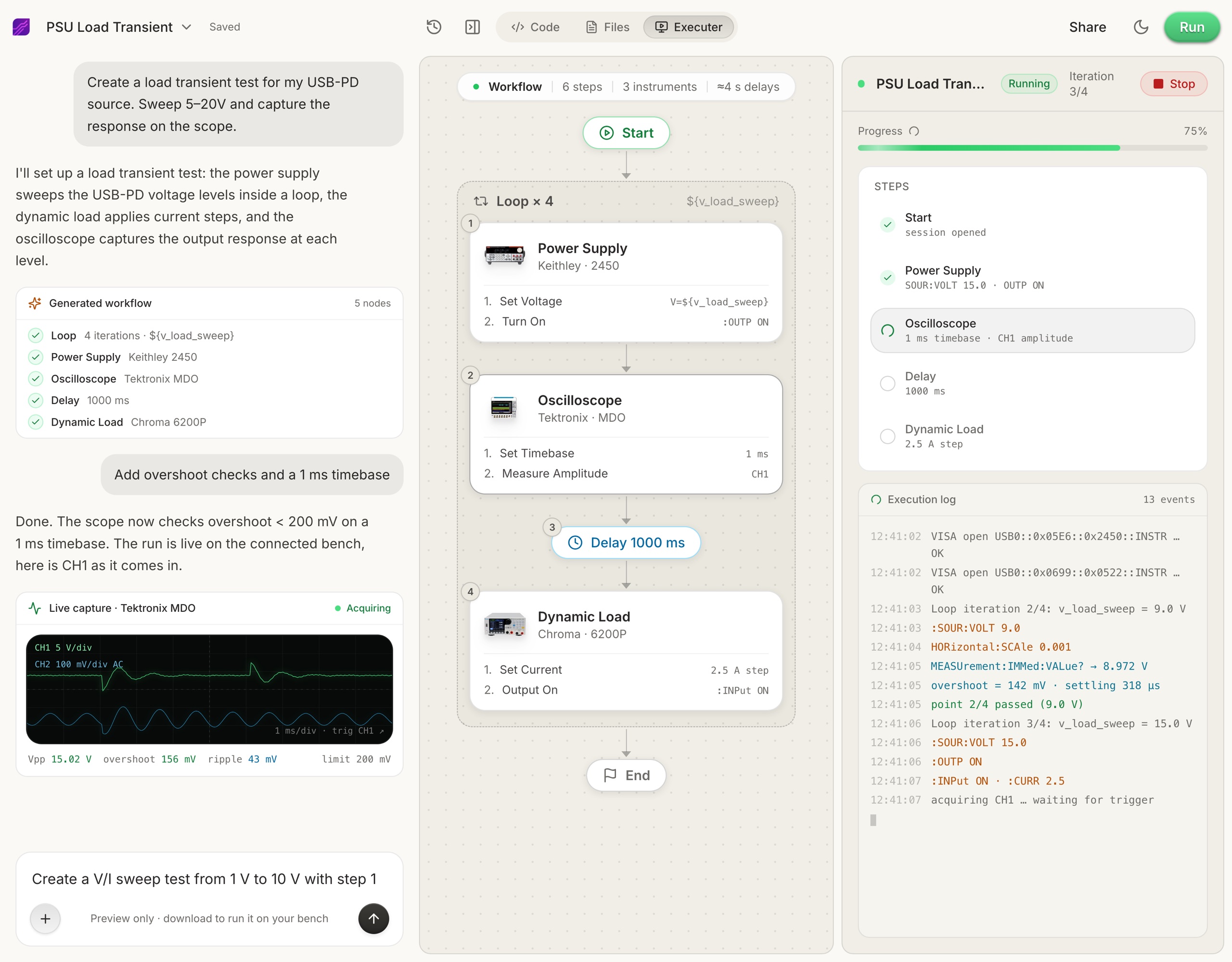
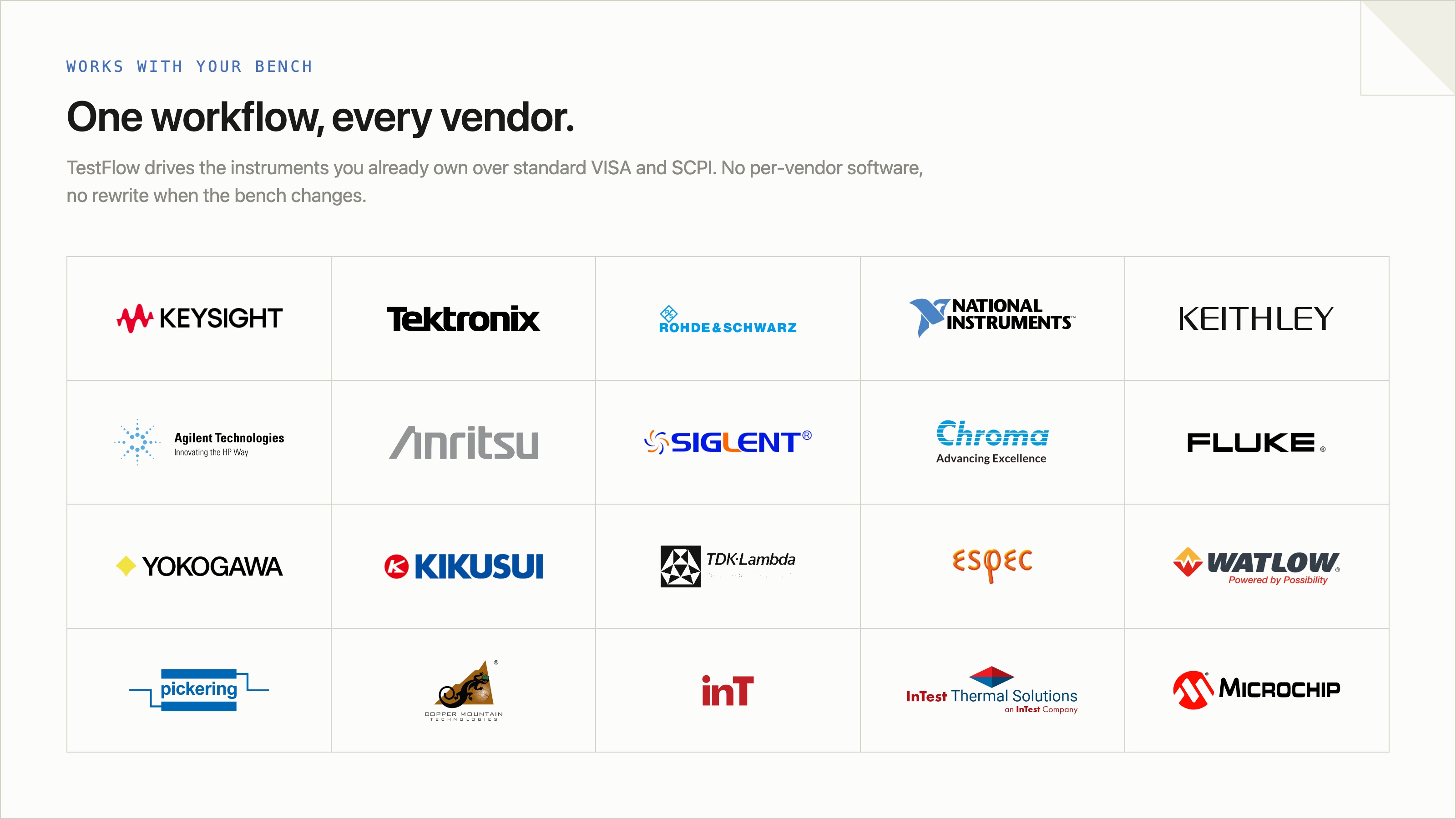
- Vendor-neutral by design. One workflow drives Keysight, Tektronix, Rohde & Schwarz, Rigol, Keithley, Anritsu, and any other SCPI instrument over standard VISA.
- Built in the browser, run on the bench. Workflows live in your workspace, so a sequence built in one lab runs the same way in another. Bench runs use the Windows desktop app.
- Free version to start. Sign in at app.testflowinc.com and build your first workflow today; teams can book a demo to scope a Bench Pilot.
The step-by-step walkthrough, VISA address formats, and Test Planner prompts are all in the TestFlow product guide.
Frequently asked questions
What is the LabVIEW Runtime Engine?
It is the set of libraries and files needed to run LabVIEW build outputs, such as stand-alone applications and shared libraries, on a computer that does not have LabVIEW installed. NI's documentation says it must be installed on any computer that runs any type of LabVIEW build output, and NI now calls it the LabVIEW Runtime.
Does the LabVIEW Runtime version have to match the LabVIEW version?
It depends on when and how the app was built. For LabVIEW 2017 and later, an app built with the option that begins 'Allow future versions' checked runs on the same or any newer runtime. With that option unchecked, and for every app built in LabVIEW 2016 or earlier, you need the runtime that matches the LabVIEW version that built it.
Is the LabVIEW Runtime free?
NI states that the runtime engine license is included in the cost of the LabVIEW development license, including on subscription, and LabVIEW Professional's Application Builder creates royalty-free stand-alone applications. Some toolkits still need a paid runtime license per station, such as the Vision Development Module Runtime License.
Can a 32-bit LabVIEW application run on the 64-bit runtime?
No. NI's compatibility page says a LabVIEW application must run on a LabVIEW Run-Time Engine of the same bitness it was developed with. 32-bit and 64-bit runtimes of the same version can be installed side by side on 64-bit Windows, and a 64-bit application cannot run on a 32-bit computer.
Do I need Application Builder to make a LabVIEW executable?
Yes. NI's edition requirements table lists stand-alone applications, installers, shared libraries, packed project libraries, .NET assemblies, packages, and zip files as needing Application Builder or LabVIEW Professional. Base and Full users buy the LabVIEW Application Builder Module. Only source distributions work with Base alone.
What happens to my deployed LabVIEW app if our subscription lapses?
NI says a deployed application that uses only the runtime engine is not affected and continues to work if you do not renew the development subscription. You lose the ability to edit and rebuild it until you renew.
Automate every instrument in the lab,
Create test workflows in minutes
- 01Describe the testIn a sentence, the way you would tell a colleague.
- 02The agent builds itWorkflow and script for your instruments, any vendor.
- 03Run it, get the reportOn your bench, with the measured values.
Tags

Article by
Ali Kamaly
Ali Kamaly is the Co-Founder and CEO of TestFlow, an AI-native platform for electronics test automation. He writes about test automation, lab validation, and the infrastructure behind modern hardware engineering.
Keep reading
All 18 articles in the LabVIEW guide- LabVIEW Subscription vs Perpetual License 2026 (3.5-Year Break-Even)The licence decision, not the price list. Break-even by edition from ni.com prices, what stops working and what keeps working when a subscription or software service lapses, how to tell which licence you are on, and the
- LabVIEW Versions and Compatibility in 2026 (Save for Previous Guide)Every LabVIEW version from 2019 to 2026 Q3 with its release date, how VIs move between versions, what Save for Previous Version can and cannot convert, the 32-bit versus 64-bit rules, and which versions NI still supports
- Keysight BenchVue vs LabVIEW in 2026 (Which One Does Your Bench Need)Two very different tools that get compared constantly. Where each genuinely fits, what both cost, and why most benches end up needing something neither one is.
- How to Migrate from LabVIEW to Python in 2026 (Step-by-Step Guide)A concrete, ordered migration plan from LabVIEW to Python, with the library equivalents for the VIs you actually use, real code, and the four traps that stall most migrations halfway.
- 8 Best LabVIEW Alternatives in 2026 (Free, Open Source, and AI-Native)Compare the 8 best LabVIEW alternatives in 2026: Python, MATLAB, OpenTAP, TestStand, BenchVue, and AI-native TestFlow. Costs, lock-in, learning curve, and a migration checklist.
Your next test, automated today
Describe the test. TestFlow builds the workflow, runs it on your instruments, and writes the report. See it on a bench like yours.