NI Package Manager (NIPM) Guide 2026 (Offline Installs, Fixes)
What NIPM installs and where it keeps things, the nipkg commands worth knowing, silent and offline installs with NI's return codes, private feeds and version pinning, NI's own fixes for common failures, and a checklist for labs without internet.
NI Package Manager (NIPM) is the installer NI software runs on: it installs, updates, repairs, and removes NI products such as LabVIEW, TestStand, NI-DAQmx, and NI-VISA as packages pulled from feeds, through a GUI (`NIPackageManager.exe`) and a command line tool (`nipkg.exe`). For labs without internet, NI provides offline installers, and nipkg can build and serve your own package feed. You pin a version with the = operator and nipkg lock. Most failed installs trace to one of a short list of causes that NI documents, and in late 2026 the NI-PAL security update is the one every Windows lab needs to check.
This guide is for test engineers and lab IT who keep NI software running on stations they did not set up, often on networks that cannot reach ni.com. Every command and path below comes from NI's Package Manager documentation or NI's own forums. If you are deciding whether to keep the NI stack at all, the LabVIEW hub and NI TestStand alternatives cover that question.
What NI Package Manager does, and where it keeps things
NI's command line interface page lists what the CLI is for: silently install, update, repair, or remove NI software, build and manage packages, view the current state of a system, and run the GUI in browse or command mode. Five locations matter when something goes wrong:
| What | Location |
|---|---|
| CLI and GUI executables | C:\Program Files\National Instruments\NI Package Manager |
User settings (nipkg.ini) | %LOCALAPPDATA%\National Instruments\NI Package Manager |
System settings (nipkg.ini) | %PROGRAMDATA%\National Instruments\NI Package Manager\Settings |
| Package cache | %PROGRAMDATA%\National Instruments\NI Package Manager\Packages |
| Logs | %LOCALAPPDATA%\National Instruments\NI Package Manager\Logs |
NI notes that user settings take precedence over system settings, and that cached packages are required to repair packages and to build feeds and installers in LabVIEW. Do not clean the cache folder to save disk space on a station you may need to repair.
The nipkg commands worth knowing
nipkg help prints the full list, and nipkg help <command> documents one. These are the ones that solve real problems:
| Command | What it does |
|---|---|
nipkg list-installed | Shows installed packages and versions |
nipkg info <package> | Shows attributes, including the full version string |
nipkg install <package> | Installs a package and its dependencies |
nipkg upgrade / list-upgradable | Upgrades installed packages, or lists what would change |
nipkg repair | Repairs packages |
nipkg lock / unlock | Stops installed packages from being upgraded or removed, or releases them |
nipkg get-dependencies | Lists dependencies of a package |
nipkg update | Refreshes the local cache from the configured feeds |
nipkg feed-list / feed-add / feed-remove | Manages which feeds the machine reads |
nipkg feed-create / feed-download | Builds a feed, or downloads one |
nipkg config-set / config-get | Changes behavior settings in nipkg.ini |
A useful first command on any unfamiliar station is nipkg list-installed > installed.txt. It gives you an exact record of driver and runtime versions before you change anything, which is the file you will want when a test that worked last month stops working.
Silent and offline installs
NI's Automating an Installer page distinguishes the two installer types on ni.com/downloads:
- •Online installers are executables, typically under 10 MB, that download packages from the internet during install.
- •Offline installers bundle a complete set of packages into one download. Product offline installers arrive as an
.isothat you mount or extract first. The NI Package Manager offline installer itself is an.exe.
Both take the same switches. Run Command Prompt as an administrator:
start "" /wait "D:\Install.exe" --passive --accept-eulas --prevent-rebootUse --quiet instead of --passive for a fully quiet install with no dialogs or taskbar icons. --prevent-activation skips license activation during install, though NI notes you must still activate products that need a license. NI documents three return codes, readable with echo %errorlevel%:
| Return code | Meaning |
|---|---|
0 | Installed successfully |
-125071 | Installed successfully, reboot required |
-126300 | Only Package Manager was installed; reboot and run the installer again |
The -126300 case catches people in scripts. A provisioning script should treat it as "reboot and repeat", not as a failure. NI states these options apply to installers built with Package Manager 20.7, released April 2021, and later. For anything not covered here, NI documents start "" "path to install.exe" /?, which lists every option the installer in front of you supports. Run it once per installer version and keep the output with your provisioning script, because options added in later releases will not exist on older media.
Run your own feed for a fleet of stations
Downloading the same offline installer for every station does not scale. A feed is a folder of .nipkg files plus manifest files that NIPM reads like ni.com. NI's Creating a Feed page builds one from a source folder:
cd "C:\Program Files\National Instruments\NI Package Manager"
nipkg feed-create "\\labserver\nifeeds\station-2026q4" "C:\staging\packages"
nipkg feed-add "\\labserver\nifeeds\station-2026q4"
nipkg update
nipkg help feed-add lists the options your Package Manager version accepts. NI notes that packages hosted on ni.com do not have to be copied into your feed, because Package Manager downloads them from ni.com automatically. In a lab with no route to ni.com, that convenience becomes a failure: include every dependency, then turn NI's online features off so the station stops trying.
Package Manager 2023 Q3 added the setting for that, documented on the CLI page:
nipkg config-set nipkg.enable-NI-connectivity falseBy default config-set writes the user nipkg.ini. NI documents a --system option that writes the system-wide file instead, and nipkg help config-set shows the exact usage.
With it set to false, NI says the Browse Products tab is hidden, NI-managed feeds are disabled, automatic download of missing packages from ni.com stops, and online installers from ni.com will error. It also removes the timeout delays an offline machine otherwise sits through. If the lab reaches the internet through a proxy instead, set nipkg.proxyserver to server:port.
Pinning NI driver versions
Validated stations should not drift. Two mechanisms do the work.
Install an exact version. An NI engineer answering on the NI forums thread Installing specific version of package confirmed that the version operator is = and that the version must be the full string from nipkg info, which for NI products is generally in the form 1.0.0-0+f0. The same reply notes that Debian-style operators such as >= and << are accepted.
nipkg info ni-daqmx
nipkg install ni-daqmx=<full version string from nipkg info>
Run nipkg help install for the downgrade and dependency options your Package Manager version supports before scripting a rollback.
Lock it. nipkg lock <package> prevents an installed package from being upgraded or removed until you run nipkg unlock. NI's troubleshooting table lists "Your request contains a locked package" as a cause of Package Manager refusing a request, which is the lock doing its job.
Pinning matters most for the pair that breaks benches: the driver and the application that calls it. NI-DAQmx and the nidaqmx Python package are a good example, covered in NI-DAQmx in Python without LabVIEW.
Common NI Package Manager problems and NI's documented fixes
These come from NI's troubleshooting table and the NI Package Manager known issues list.
| Symptom | NI's stated cause | NI's fix |
|---|---|---|
| Cannot install, update, or repair | No internet for an online source, or the source location is inaccessible | Check connections, then the logs folder |
| Install fails mid-way | MSI failure | Reboot and try again |
| Install fails on a current product | Outdated Package Manager | Download the latest NIPM from ni.com/downloads |
| "Package Manager found some problems with your request" | Unresolvable conflicts, a locked package, an unavailable package, or an incompatible OS | Review and modify the request |
| Asked to remove packages you did not select | A dependency or a conflicting product | Allow Removal or Cancel |
| "libarchive 'Write failed'" (known issue 623147) | Not enough disk space to unpack | Free disk space |
| "Problem updating the feeds cache" (known issue 624530) | Cannot reach NI's servers | Enter info code NIPMCommError at ni.com/info |
| Hardware not detected after install | Windows Fast Startup left enabled | Disable Fast Startup |
| Expected features missing | Recommended packages declined at install | INSTALLED tab, Install or remove related packages |
When none of these match, turn on more logging. The CLI page documents nipkg.plugin.wininst.msilogs-enabled for MSI logs and nipkg.curldebugfile-enable for network traffic logs, both off by default.
The NI-PAL security update every Windows lab should check
NI's required NI-PAL security update page covers CVE-2026-18485, which affects NI-PAL 26.3.1 and earlier on Windows. NI-PAL sits underneath many NI drivers, so this reaches far beyond one product. The page's timeline:
- •August 5, 2026: NI disclosed the vulnerability.
- •September 30, 2026: NI communicated Microsoft's planned vulnerable driver blocklist enforcement, expected November 10.
- •October 26, 2026: Microsoft paused adding NI-PAL 26.3.1 and earlier to the blocklist.
NI is explicit that the pause does not fix the vulnerability and that security products may still flag affected versions, with symptoms including installation failures, driver quarantine or removal, and application startup issues. The check takes a minute:
- 1
Open
%WinDir%\system32\drivers, findnipalk.sys, and read Product Version on the Details tab. - 2
If it is 26.3.1 or earlier, install NI-PAL 2026 Q3 or later through NI Update Service or the offline installer from the NI-PAL download page. NI notes you may need to update NI Package Manager first to see the update.
- 3
Restart, then confirm the device in NI MAX, run Self-Test and Reset, and run a test panel.
For new builds that must use older drivers, NI recommends installing NI-PAL 26.5.0 first. NI does not recommend disabling the Microsoft vulnerable driver blocklist as a workaround.
Checklist for locked-down labs
- 1
Record first.
nipkg list-installedto a file before any change. - 2
Use offline media or an internal feed. Never rely on online installers on an air-gapped network.
- 3
Disable NI connectivity with
nipkg.enable-NI-connectivity falseon Package Manager 2023 Q3 or later. - 4
Keep the package cache. NI needs it to repair.
- 5
Pin and lock validated driver versions.
- 6
Script with return codes, treating
-125071and-126300as reboots, not failures. - 7
Check NI-PAL on every Windows station this quarter.
Where TestFlow fits
NIPM keeps the NI layer installed. It does not reduce how much of that layer a bench needs. TestFlow takes a different route for bench instruments: it is an AI agent for electronics testing that drives instruments over VISA and SCPI from any vendor through a Windows desktop app. You describe the test, the agent builds the automation and runs it, and the report is written from the measured results.
For SCPI bench instruments, that means no LabVIEW installation on the bench PC to keep in step. NI hardware is different. TestFlow's DAQ coverage is narrow, limited to the NI USB-6001, USB-6501, and PCI-6515 through NI-DAQmx, so a station using those still needs NI-DAQmx installed and maintained through NIPM as described above. Teams on TestStand can import their sequences, which keeps the sequences and the calls between them. See the supported instruments list and the free version to start.
Related reading
- •LabVIEW system requirements, what NIPM will refuse to install on
- •Download LabVIEW, the editions and installers
- •NI software licensing costs, what the installed stack costs
- •PyVISA tutorial, instrument control that needs only a VISA library
- •DAQ with Python, the short version of NI DAQ from Python
- •LabVIEW to Python migration, reducing the NI footprint
- •Python instrument control, the Python stack for bench instruments
- •Free instrument control software, the zero-license options
- •TestStand hub, if TestStand is part of your install base
Where TestFlow fits
NIPM keeps NI software installed. TestFlow is about what runs on top of it: the bench test itself, built from a description and run on the instruments already connected.
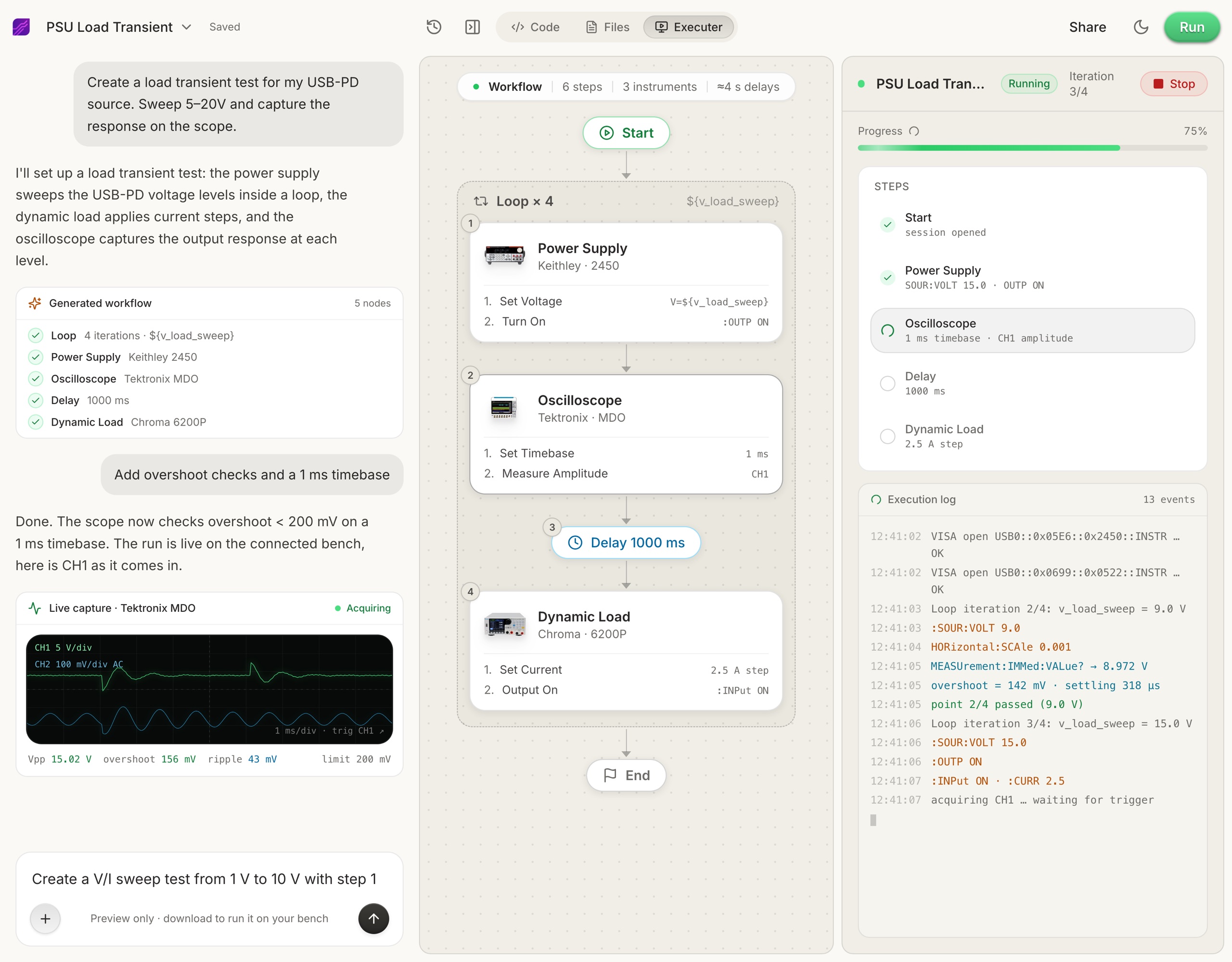
- 1
Connect your instruments. Pick the manufacturer and model, paste the VISA address (USB, LAN, GPIB, or serial), and the agent knows what is on your bench. No bench yet? Use a placeholder address, build the full automation, and swap in the real address when you are in the lab.
- 2
Tell the agent what to test. For example, "run a VI sweep from 1 to 10 V in 1 V steps at 0.5 A load current," or "suggest the tests for a power-management device."
- 3
The agent builds the complete workflow in seconds. Instrument-aware automation appears on the canvas, with the generated scripts visible in a code panel you can inspect and edit.
- 4
Run it in your lab. Click Run in the TestFlow desktop app for Windows and the status panel streams results step by step, with measured values inline (VOUT = 3.301 V, asserted 3.2 to 3.4 V, PASS). One click exports a structured PDF report, or the raw results as CSV.
- Vendor-neutral by design. One workflow drives Keysight, Tektronix, Rohde & Schwarz, Rigol, Keithley, Anritsu, and any other SCPI instrument over standard VISA.
- Built in the browser, run on the bench. Workflows live in your workspace, so a sequence built in one lab runs the same way in another. Bench runs use the Windows desktop app.
- Free version to start. Sign in at app.testflowinc.com and build your first workflow today; teams can book a demo to scope a Bench Pilot.
The step-by-step walkthrough, VISA address formats, and Test Planner prompts are all in the TestFlow product guide.
Frequently asked questions
What is NI Package Manager?
NI Package Manager (NIPM) is the tool NI software uses to install, update, repair, and remove products such as LabVIEW, TestStand, NI-DAQmx, and NI-VISA. It has a GUI, NIPackageManager.exe, and a command line interface, nipkg.exe, both installed in C:\Program Files\National Instruments\NI Package Manager.
How do I install NI software on a computer without internet?
Download the product's offline installer from ni.com/downloads on a connected machine. NI states that offline installers download as an .iso file that you mount or extract before launching, while the NI Package Manager offline installer is an .exe. For repeat installs, host the packages on a network feed with nipkg feed-create and register it with nipkg feed-add.
How do I install a specific version with nipkg?
Use the = version operator with the full version string from nipkg info, for example nipkg install package-name=1.0.0-0+f0. An NI engineer on the NI forums confirmed that = is the operator and that NI package versions generally take that full form. Then run nipkg lock on the package to stop it being upgraded or removed.
How do I run an NI installer silently?
Run Command Prompt as an administrator and launch the installer with start "" /wait "path of install.exe" --passive --accept-eulas --prevent-reboot, or --quiet instead of --passive for a fully quiet install. NI documents return code 0 for success, -125071 for success with a reboot required, and -126300 when only Package Manager was installed.
Why does NI Package Manager fail to install software?
NI's troubleshooting table lists no Internet connection for online sources, an inaccessible source location, an MSI failure that a reboot clears, and an outdated Package Manager. NI's known issues add the libarchive Write failed error, which is fixed by freeing disk space. Logs are under %LOCALAPPDATA%\National Instruments\NI Package Manager\Logs.
What is the NI-PAL security update?
CVE-2026-18485 affects NI-PAL 26.3.1 and earlier on Windows. NI's guidance is to check the Product Version of nipalk.sys in the Windows drivers folder and, if it is 26.3.1 or earlier, install NI-PAL 2026 Q3 or later through NI Update Service or the offline installer, then restart.
Automate every instrument in the lab,
Create test workflows in minutes
- 01Describe the testIn a sentence, the way you would tell a colleague.
- 02The agent builds itWorkflow and script for your instruments, any vendor.
- 03Run it, get the reportOn your bench, with the measured values.
Tags

Article by
Ali Kamaly
Ali Kamaly is the Co-Founder and CEO of TestFlow, an AI-native platform for electronics test automation. He writes about test automation, lab validation, and the infrastructure behind modern hardware engineering.
- What Is NI Vision? Machine Vision in the NI EcosystemNI Vision explained: the Vision Development Module and Vision Builder, how machine vision works with LabVIEW, what it costs, and alternatives.
- Emerson NI Acquisition in 2026 (LabVIEW, TestStand, Prices, Roadmap)A sourced account of the Emerson acquisition of NI from the deal terms to November 2026: how the business has performed, what LabVIEW and TestStand cost now, what NI has shipped and promised, and how test teams should pl
- NI MAX Alternatives in 2026 (Find, Test & Alias Any Instrument)How to find, test, and alias bench instruments without NI Measurement & Automation Explorer, which tool replaces each MAX job, where NI MAX actually comes from in 2026, and the NI hardware tasks that still need it.
- NI-VISA Alternatives in 2026 (Keysight, R&S, TekVISA, pyvisa-py)Every practical NI-VISA alternative checked against its vendor's own page in November 2026, when NI-VISA is still the right install, the licensing rule NI publishes, and how two VISA libraries share one Windows PC withou
- 8 Best LabVIEW Alternatives in 2026 (Free, Open Source, and AI-Native)Compare the 8 best LabVIEW alternatives in 2026: Python, MATLAB, OpenTAP, TestStand, BenchVue, and AI-native TestFlow. Costs, lock-in, learning curve, and a migration checklist.
Your next test, automated today
Describe the test. TestFlow builds the workflow, runs it on your instruments, and writes the report. See it on a bench like yours.